
Everything you need to know.
Set up basketweave in about five minutes, understand how it works, and know exactly what it can — and can’t — do.
Before you start
basketweave itself is free. To play music you need:
- An Apple Music subscription (individual or family) — sign in with the Apple ID that has it.
- An iPhone or iPad with iOS 18.6 or later, or an Android phone or tablet with Android 10 or later.
- An internet connection to stream music from Apple Music. On iOS, playlists you’ve downloaded in Apple Music also play offline.
- At least one playlist in your Apple Music library. Create playlists in the Apple Music app; basketweave uses them.
basketweave is an independent app, not made by Apple. It uses Apple’s official MusicKit to sign in and play your music.
Set up in 5 minutes
- Open basketweave and connect Apple Music
iOSTap Allow when asked for access to your Apple Music library.
AndroidSign in with your Apple ID on Apple’s own screen. basketweave never sees your password. - Allow some playlists A short welcome screen explains that nothing shows up for your child until you choose. Tap Open Playlist Editor and switch on the playlists you want.
- Check what your child will see Back on the main screen you’ll see only the playlists you allowed. Tap one to see its albums, tap an album to play it.
- Lock the editor Tap the lock icon in the top bar and create a 6-digit PIN. Enter it a second time to confirm.
- Hand it over That’s it. Optionally, turn on kiosk mode to hide the lock and edit buttons completely.
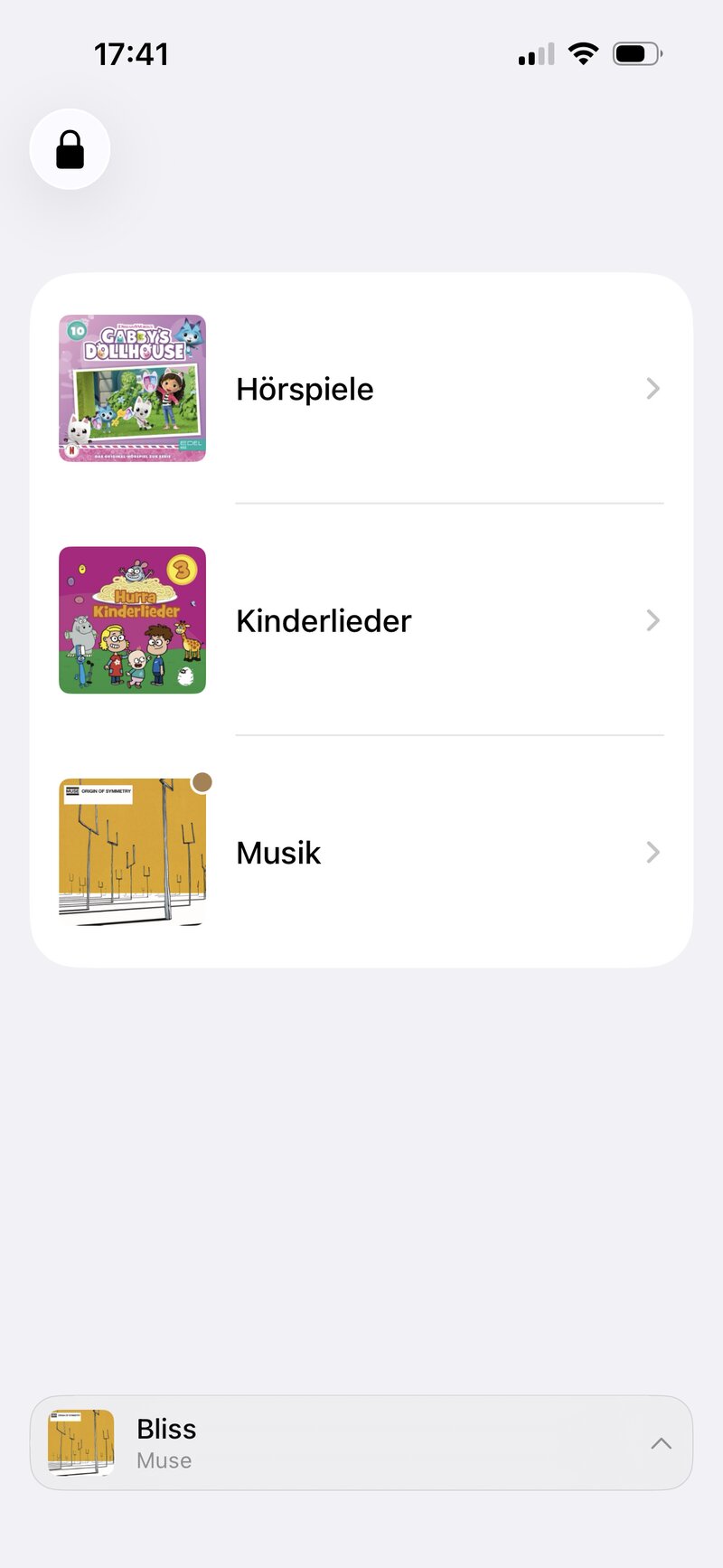
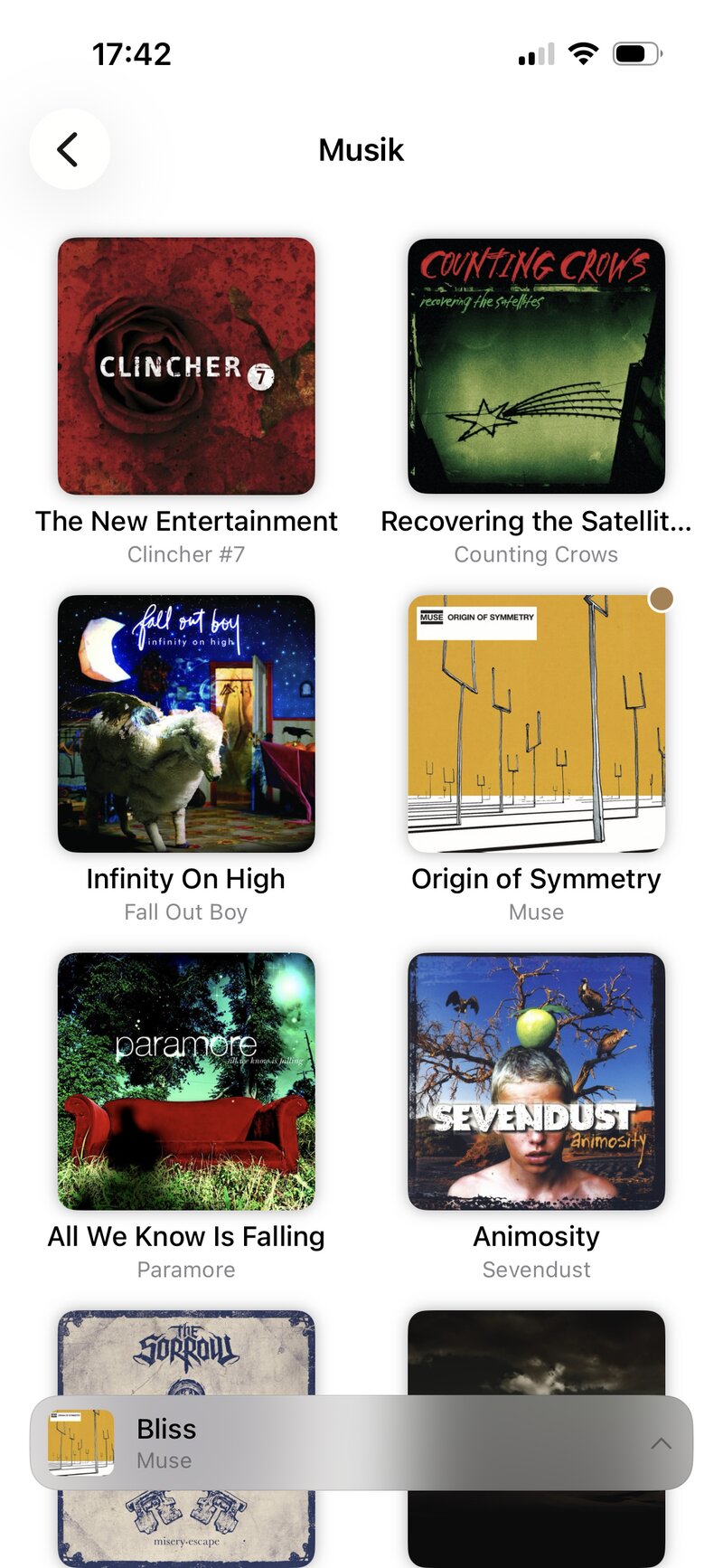
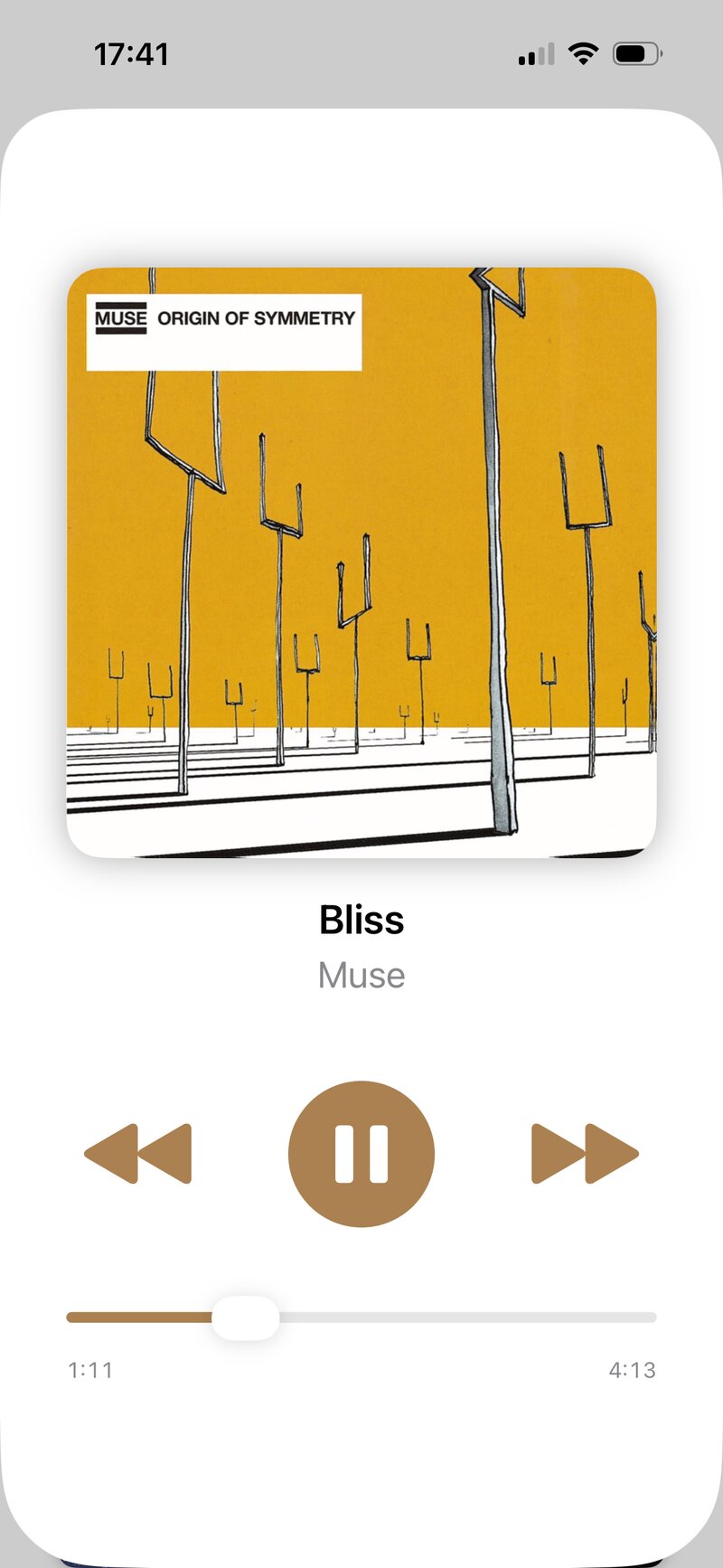
Pick a PIN you’ll remember. There is deliberately no “forgot PIN” option — see The PIN lock.
Choosing playlists
basketweave only ever shows playlists you’ve explicitly allowed. This is the heart of the app.
- Open the playlist editor with the button in the top right (available while editing is unlocked).
- Switch playlists on or off. Only switched-on playlists are shown to your child.
- Made a new playlist in Apple Music? Opening the editor fetches your latest list, and Reload does the same from the empty screen.
- Deleted a playlist in Apple Music? It drops out of basketweave’s allowed list automatically.
- Playlists can’t be created or edited inside basketweave — use the Apple Music app for that.
How it’s organized
basketweave shows albums, not song lists. It groups a playlist’s songs by artist and album, sorts the albums by artist, and plays tracks in album order. Tapping an album starts it and continues with the albums that follow.
Playlist order isn’t kept. Because songs are grouped into albums, a hand-ordered playlist plays in album order instead. Songs with no album information appear under “Unknown Album”.
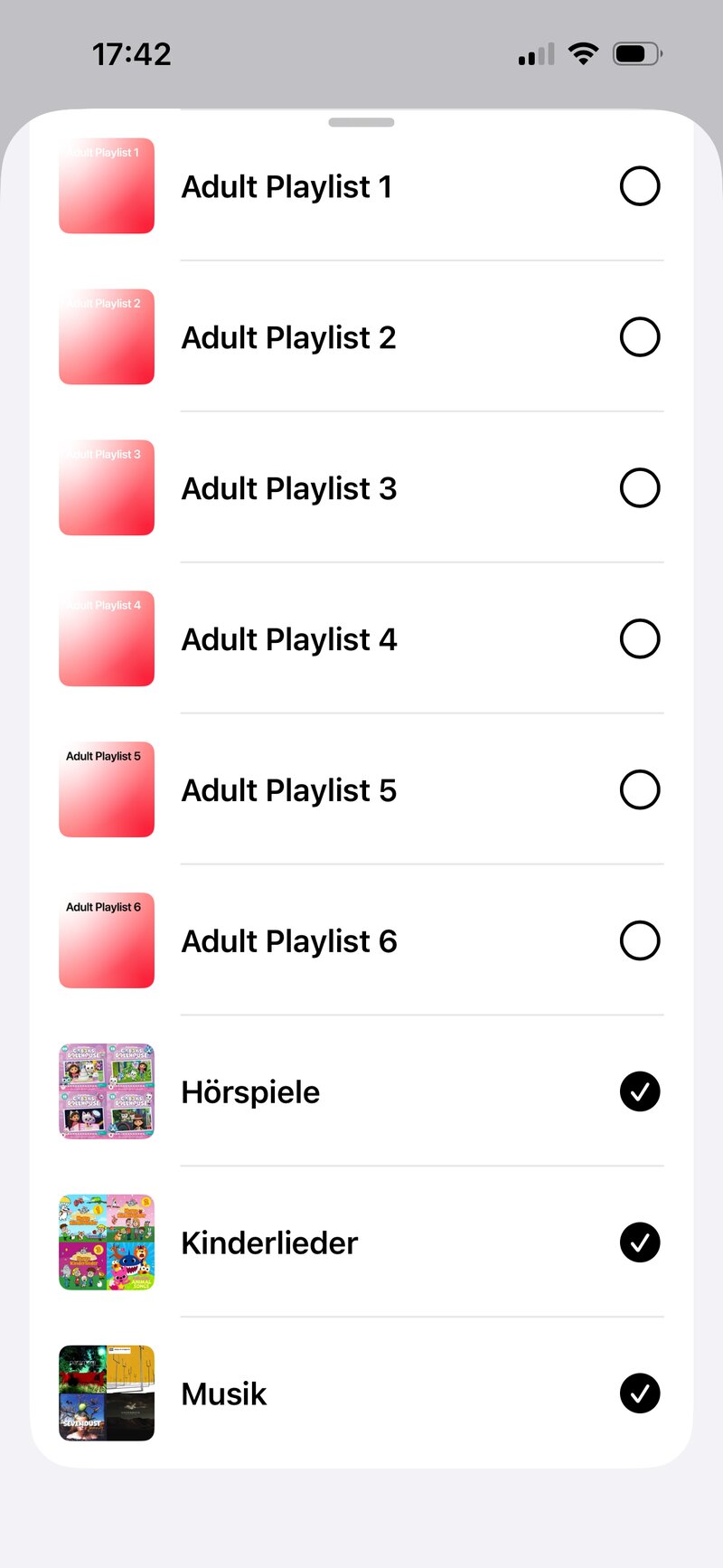
The PIN lock
Once your playlists are set, lock the editor so your child can’t change the selection.
- Lock: tap the lock icon, create a 6-digit PIN, and confirm it.
- Unlock: press and hold the lock icon and enter your PIN. A plain tap isn’t enough — that’s on purpose.
- Change the PIN: while editing is unlocked, press and hold the open lock icon. Enter your current PIN, then choose and confirm a new one.
- Where it’s stored: only on your device, scrambled (hashed). It is never sent anywhere. It’s built to keep curious kids out, not determined attackers.
Forgot your PIN? There is no recovery by design. Delete and reinstall the app — this also resets your allowed playlists and playback history, then you can set everything up again.
What your child sees
- Playlists. Only the ones you allowed, as large artwork tiles.
- Albums. Tap a playlist to see its albums as a grid of covers. Tap an album to play.
- Mini player. A compact bar at the bottom shows what’s playing. Tap it to open the full player.
- Now Playing. Big artwork, title and artist, play/pause, previous/next, and a slider to jump around in the song.
- Picks up where you left off. basketweave remembers the queue and position, even after the app is closed or the device restarts.
- Background playback. Music keeps playing with the screen off, with controls on the lock screen or in the notification.
Kiosk mode
For a device that’s mainly your child’s music player, hide the lock and edit buttons entirely, so there’s nothing to tap or guess at.
iOS iPhone & iPad
basketweave detects Guided Access automatically. While it is running, the lock and edit buttons are hidden and your child can’t leave the app; end it and they come back. Turn it on under Settings → Accessibility → Guided Access, then triple-click the side button inside basketweave to start it.
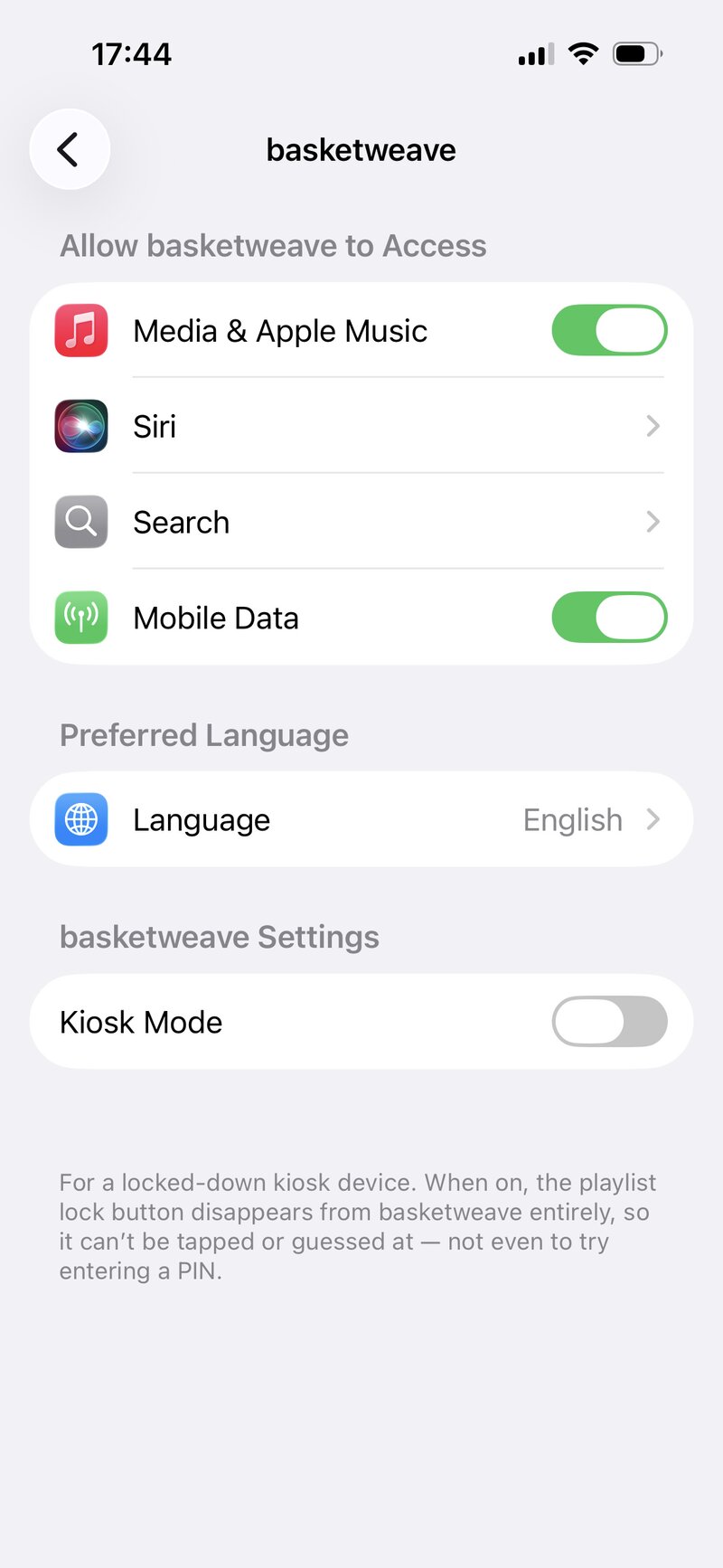
Need more? Open Settings → basketweave and switch on Kiosk Mode to hide the buttons permanently, whether or not Guided Access is running. To change playlists later, switch it off again.
For advanced users: if you manage your child’s iPhone or iPad with MDM (mobile device management), Single App Mode gives the best experience. It locks the device to basketweave, and basketweave hides the lock and edit buttons automatically, just like in Guided Access.
Android
Use Android’s Screen Pinning (in your security settings under “App pinning”; the exact wording varies by device). basketweave detects it automatically: while the app is pinned, the lock and edit buttons are hidden — unpin to bring them back.
What works — and what doesn’t
basketweave is deliberately small. Here’s an honest list so there are no surprises.
Works
- Playlists from your Apple Music library, shown as album grids
- Play/pause, previous/next and a seek slider
- Background playback with lock-screen or notification controls
- Resuming where you left off
- Offline playback on iOS for playlists downloaded in the Apple Music app
- PIN-locked editing and automatic kiosk mode with Guided Access, Single App Mode and Screen Pinning
- iOS 18.6+ (iPhone and iPad) and Android 10+
- Songs that only exist in your own library (Android, too)
- English and German
Not included
- Search, browsing the Apple Music catalog, radio or recommendations
- Shuffle, repeat or editing the queue
- Creating or editing playlists (use Apple Music for that)
- Keeping a hand-made playlist order — songs play in album order
- Playing without an Apple Music subscription
- Offline playback on Android — not available at the moment
- Filtering explicit content — what’s playable depends only on the playlists you allow
Good to know
- Check playlists before handing over. basketweave doesn’t filter content itself, so listen through — or skim — what you allow.
- Listening offline (iOS). Download the playlist in the Apple Music app, and it also plays in basketweave without a connection — handy for car rides. Downloads need an active Apple Music subscription. On Android, offline playback isn’t available at the moment.
- Set a volume limit in your device’s sound settings if your child uses headphones.
- Private by design. No ads, analytics or tracking; your setup stays on your device. Read the privacy policy.
- Something not working? Check Support or write to basketweave.app@proton.me.